A guide for AOM Benefits Trust members
Starting October 1, 2026, signing in to the AOMBT member site takes one extra step. After your password, the site asks for a six-digit code from an app on your phone or computer. The code changes every 30 seconds, so someone who steals or guesses your password still can't get into your benefits information or your tax documents.
You only set this up once. It takes about five minutes.
Before you start
You'll need:
- Your email address and password for the member site.
- A computer. You can do this on a phone, but it's much easier to show the setup screen on a computer and point your phone at it.
- An app that makes the codes. Pick one in Step 1 and install it before you sign in.
Step 1: Choose an app
Two kinds of app work. You only need one.
An authenticator app on your phone. These are free, and they're the simplest choice for most people. We've tested both of these with the member site:
- Google Authenticator (App Store / Google Play)
- Microsoft Authenticator (App Store / Google Play)
A password manager. If you already use one to save your passwords, it can hold your codes as well and fill them in when you sign in. This is also the option to choose if you don't have a smartphone, because a password manager runs on your computer.
- 1Password (1password.com/downloads)
Instructions are in Step 3. - Apple Passwords — Built in to iPhone, iPad, and Mac
Use the Passwords app on iOS 18 or macOS Sequoia and later.
Other apps that make six-digit sign-in codes generally work too, but we haven't tested them.
Step 2: Sign in and open the setup screen
1. Go to midwivesbenefits.ca/login on your computer.
2. Enter your email and password, then click Log in.

3. Wait for the setup screen. The site takes you straight to a page called Set Up Multi-Factor Authentication. The rest of the site stays locked until you finish.

4. Click the Set up button.
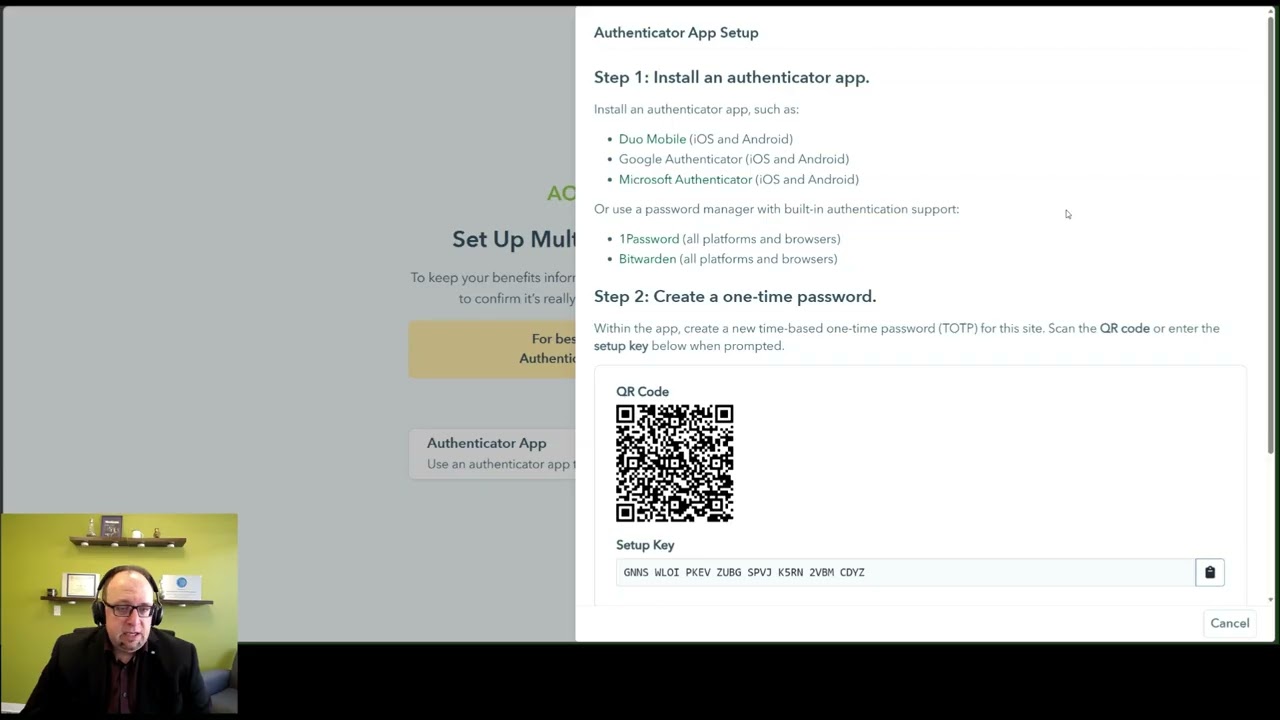
A panel slides in from the right with three steps of its own. Leave it open while you work in your app. It looks like this:

If the site asks for your password again at this point, type it in. That's a security check, and it only appears if it's been more than ten minutes since you signed in.
Step 3: Set up your authenticator app
Here we provide instructions for setting up three common authenticator apps and logging into our website with your passcode: Google Authenticator, Microsoft Authenticator, and 1Password. Select whichever you prefer. Other authenticators should work in a similar way.
Option
Using Google Authenticator
- Open Google Authenticator on your phone.
- Tap the + button, then tap Scan a QR code.
Point your phone at the QR code on your computer screen. The app adds an entry showing the site name and your email address, with a six-digit code underneath.

On your computer, type the six-digit code into the Verification Code box. Some apps show a space in the middle of the code. Leave the space out.

- Click Verify.
Option
Using Microsoft Authenticator
1. Open Microsoft Authenticator on your phone.
2. Tap the + button, then choose Other account.
3. Point your phone at the QR code on your computer screen. The app adds an entry showing the site name and your email address. Tap it to see the six-digit code.

4. Type the six-digit code into the Verification Code box on your computer. Some apps show a space in the middle of the code. Leave the space out.
5. Click Verify.
Option
Using 1Password
These steps use the 1Password app on your computer.
1. In the setup panel on the site, find the Setup Key box and click the Copy button at the right-hand end.
2. Open 1Password and find your saved login for the member site. If you don't have one yet, click New Item, choose Login, and save your email and password in it.
3. Click Edit on that login.
4. Add a one-time password field. Click Add More, then choose One-Time Password.
5. Paste the setup key into the new field and click Save. The login now shows a six-digit code with a small timer beside it.

6. Copy the code from 1Password and paste it into the Verification Code box on the site.
7. Click Verify.
Using Bitwarden or Apple Passwords instead? The idea is the same: copy the Setup Key, add a verification code to your saved login for the member site, then type the code it shows into the Verification Code box.
Step 4: Finish
1. Look for the checkmark. The panel says Authenticator App added successfully.

2. Click Close at the bottom of the panel. The Authenticator App box now shows Active.
3. Click All done. The site takes you in.
That's it. Keep the app on your phone or computer, because you'll need it every time you sign in.
Signing in from now on
- Enter your email and password as usual, and click Log in.
- Open your app and find the code for the member site.
- Type the code into the Verification Code box and click Verify.

Each code lasts 30 seconds. If yours is about to change, wait for the new one rather than racing the timer. If you use 1Password, it can fill the code in for you.
Troubleshooting

The site says "Invalid verification code."
Wait for a new code and try again, typing all six digits with no space. If it keeps failing, check the clock on your phone. The codes depend on the time being exactly right, so turn on the setting that updates your phone's date and time automatically.
I'm setting this up on my phone and can't scan my own screen
Scroll the setup panel down to Setup Key and tap the copy button beside it. In your authenticator app, choose the option to enter a key by hand instead of scanning, and paste it in.
I'm getting a new phone
Move your codes across before you reset, sell, or trade in the old one. Google Authenticator can transfer its accounts to a new phone from its own menu, and Microsoft Authenticator can back them up to your Microsoft account. If the old phone is already gone, read the next answer.
I lost my phone, or deleted the app
Contact us. There are no backup codes, so we'll reset it for you. We'll confirm it's really you first, so nobody else can use this to get into your account. Once it's done you'll get an email, and the next time you sign in the site walks you through setup again, exactly like the first time.
I don't have a smartphone
Use a password manager on your computer instead. The options are in Step 1. If that won't work for you either, contact us and we'll talk it through.
Need help?
Contact us with your name and the email address you use to sign in. Never send us your password or a code from your app. We will never ask for either.